
Photo Editing
4 stories
-
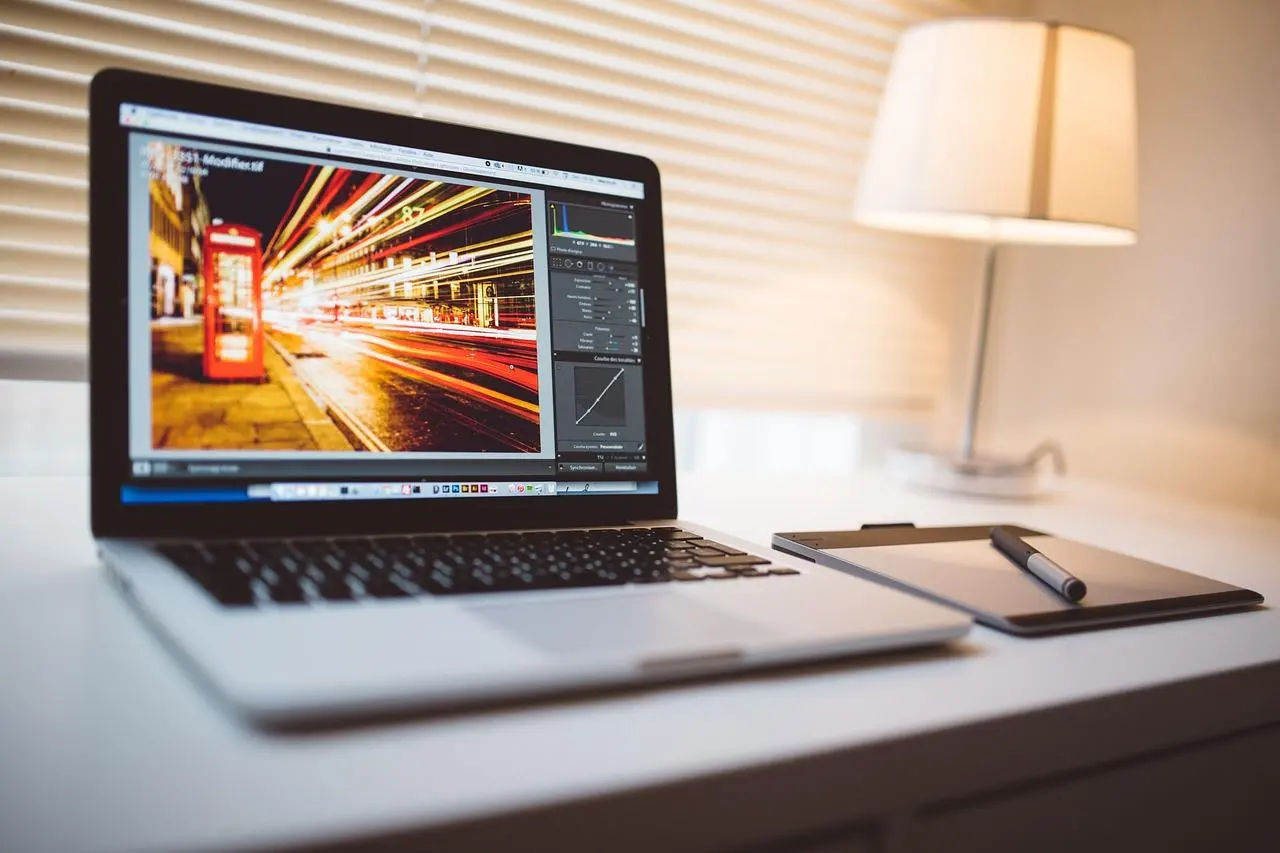
Photo Editing Basics for Better Slideshows
Photos that look uneven make a slideshow feel rushed, and you don’t need expensive software to fix that. Learn the photo editing basics: crop, fix exposure, correct color, then sharpen, and your slides will look consistent. These figures come from Adorama’s Photoshop guide and Picsart’s editing guide. Software menus and features change, so check the…
-
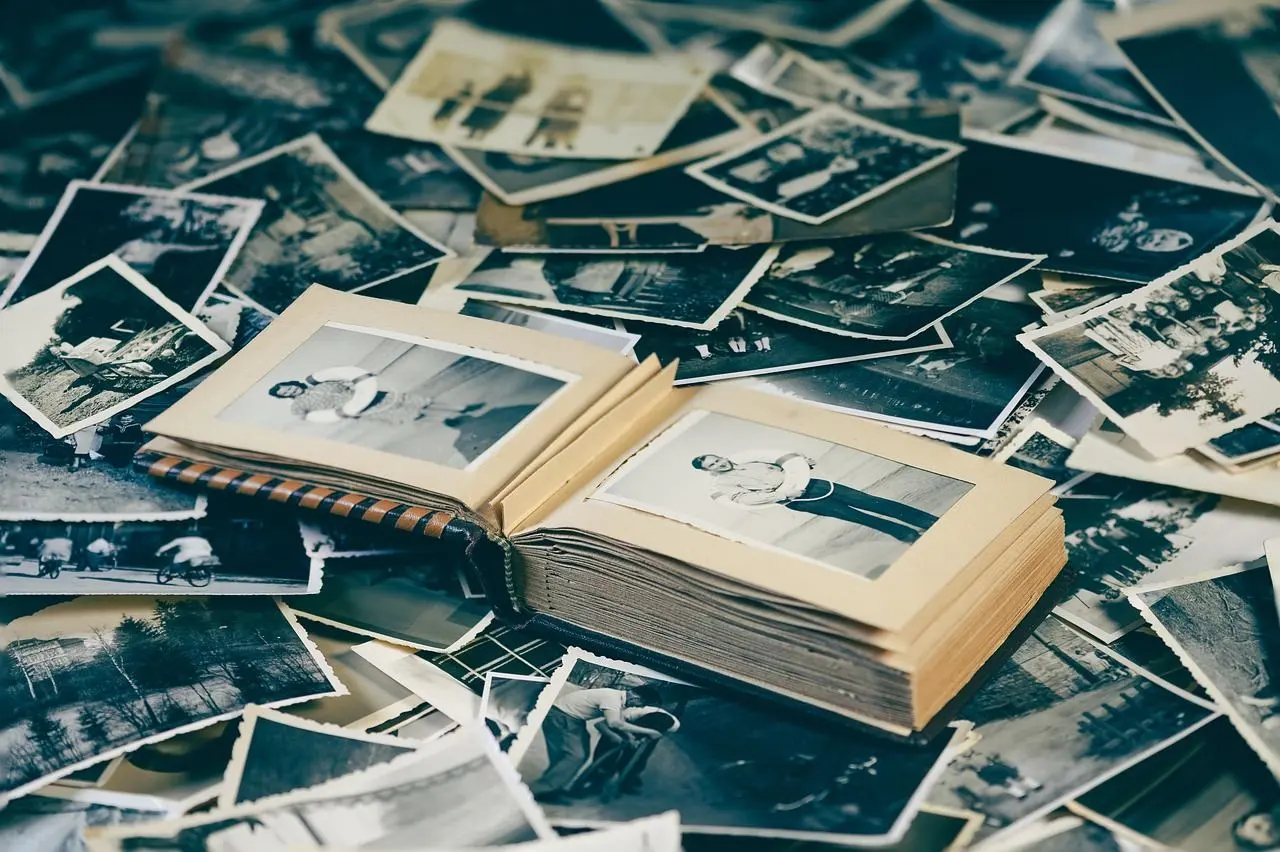
Color Correcting Photos So a Slideshow Looks Consistent
Slides that jump between yellow indoor shots and cold blue outdoor ones look sloppy. Here’s how to color correct photos: fix white balance first, then match the rest of the set with one shared edit. This guide sits inside our broader photo editing basics collection. These details come from Google’s Photos blog and Noble Desktop’s…
-

How to Resize Photos for a Slideshow Without Losing Quality
You want sharp photos on screen, not soft ones. The short answer on how to resize photos for a slideshow: match each photo to your frame size, such as 1920×1080 pixels for Full HD, and only scale down. This guide is part of our photo editing basics collection. The figures come from Narakeet’s video size…
-
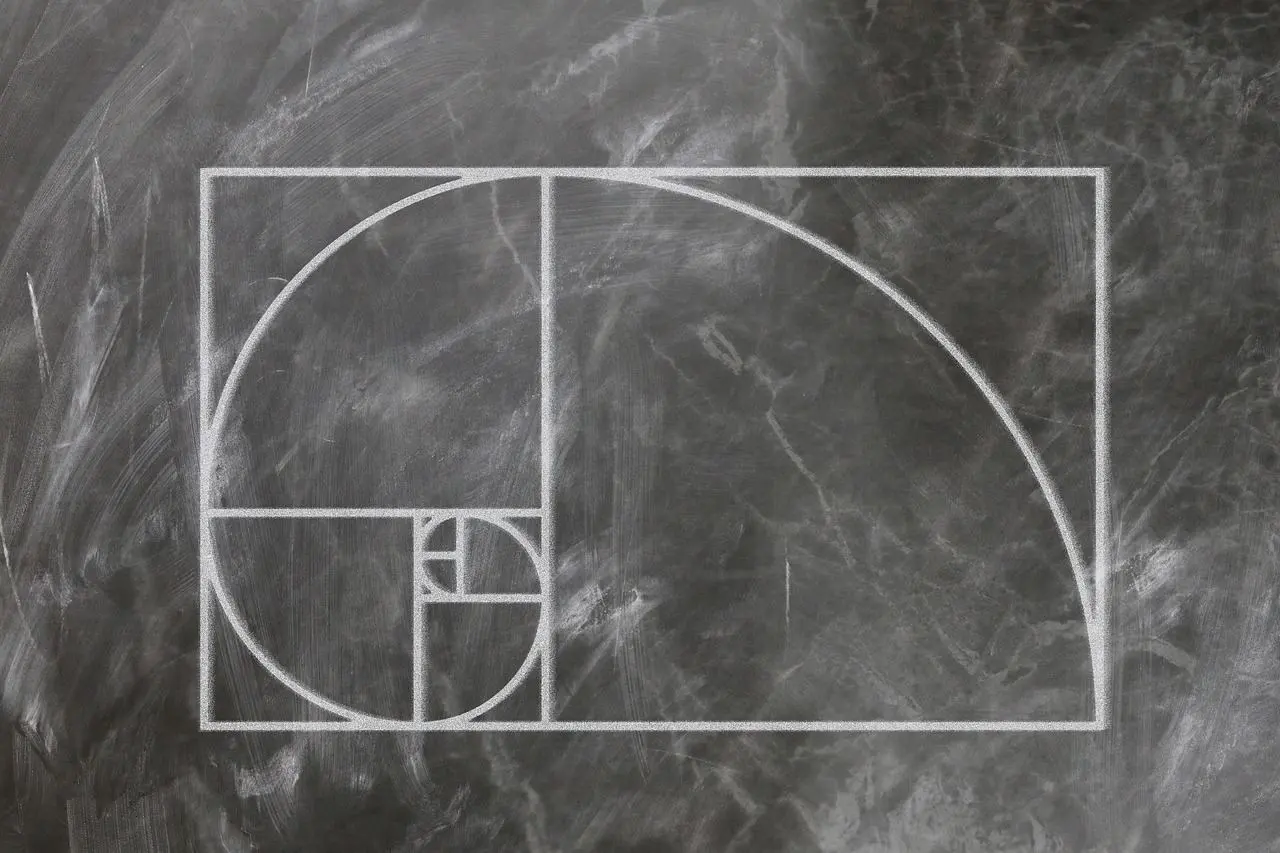
Choosing the Best Aspect Ratio for Your Slideshow
Worried your photos will look squashed or get ringed with black bars? The best aspect ratio for slideshow use is widescreen for most screens, with a boxier shape only for older projectors. This guide is part of our look at photo editing basics, where you can find the wider set of photo prep steps. These…