Worried your photos will look squashed or get ringed with black bars? The best aspect ratio for slideshow use is widescreen for most screens, with a boxier shape only for older projectors.
This guide is part of our look at photo editing basics, where you can find the wider set of photo prep steps.
| Item | Value |
|---|---|
| Standard slide shape in PowerPoint | 4:3 |
| Widescreen slide shape in PowerPoint | 16:9 |
| PowerPoint Widescreen slide size | 13.333 in x 7.5 in |
| PowerPoint On-screen Show (16:9) size | 10 in x 5.625 in |
| Screen space wasted by a shape mismatch | Roughly a quarter of the screen |
These figures come from Microsoft Support and Indezine. They can change with new software versions, so check the sources before you rely on them.
Why widescreen is the safe default
For a modern laptop, TV or projector, widescreen is the shape to pick. Microsoft’s support page says the 16:9 setting is the default for new presentations, and it calls Widescreen (13.333 in x 7.5 in) the best choice for presentations because it gives more slide surface area. Microsoft Support has the full list of sizes.
That default is not new. Indezine notes that since PowerPoint 2013, the default aspect ratio has been Widescreen (16:9).
The reason is simple: your audience is probably looking at a screen that is already wide. As of Indezine’s August 2026 update, most rooms, screens and devices are widescreen-native, which makes 16:9 the safer bet if you can only carry one version (Indezine).
The common slide shapes compared
Most slideshow tools give you a short menu of shapes. These are the ones you will meet most often:
- Standard (4:3): the boxier option, available in both PowerPoint and Google Slides (Microsoft Support).
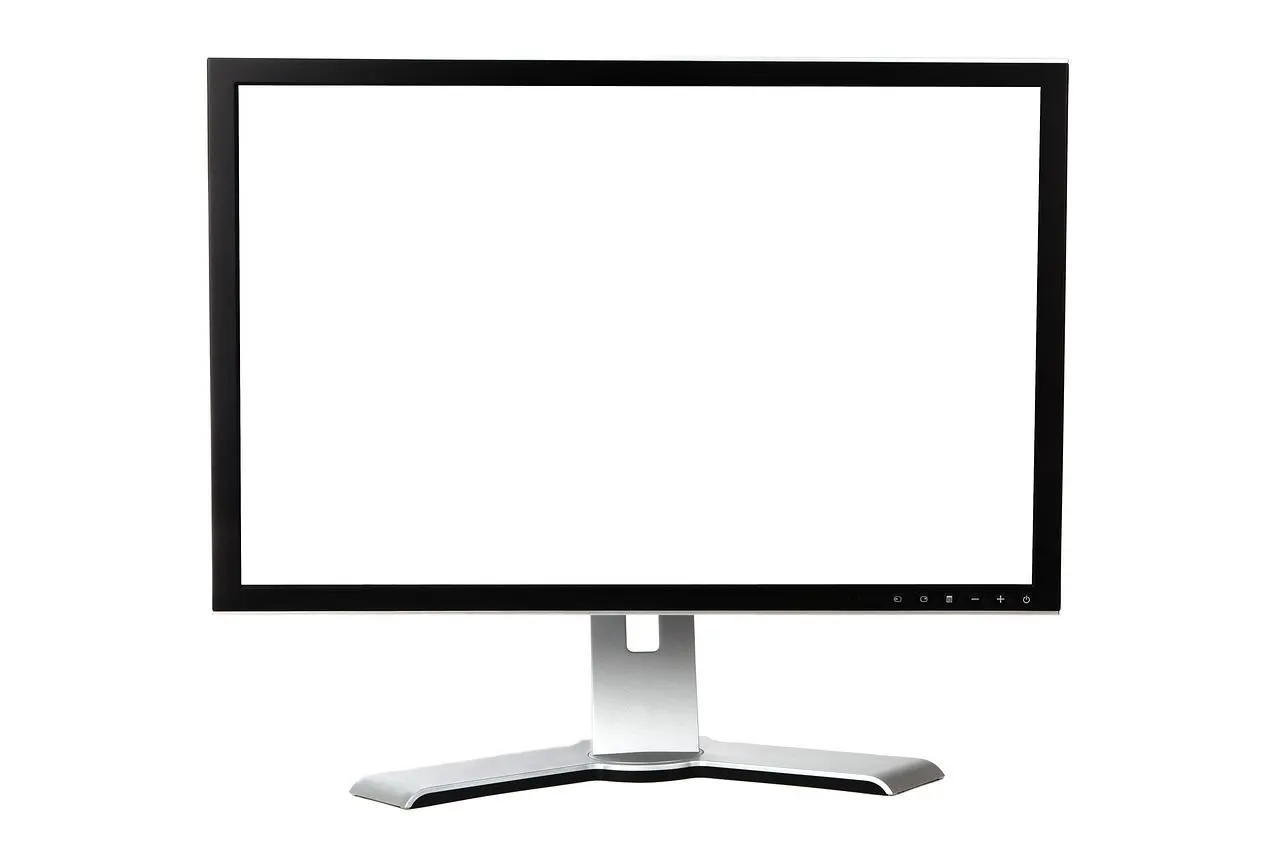
- Widescreen (16:9): the wider, shorter shape that matches most laptops, TVs and monitors (Indezine).
- Widescreen (16:10): a slightly taller wide option that Google Slides lists in its page setup menu (Google Docs Editors Help).
PowerPoint has two sizes that share the 16:9 shape. On-screen Show (16:9) sets the slide to 10 in x 5.625 in, while Widescreen sets it to 13.333 in x 7.5 in, and both look the same in Normal View because PowerPoint adjusts the zoom (Microsoft Support).
The 16:9 shape was chosen on purpose. Indezine tells the story of engineer Kerns Powers, who in 1984 stacked paper cut-outs of popular film and TV shapes to find one that suited them all.
What happens when the slide and the screen don’t match?
A mismatch never cuts your photo, but it does shrink it. Put a 4:3 slideshow on a widescreen TV or projector and PowerPoint fills the extra space with black bars on the left and right (Microsoft’s PowerPoint widescreen blog post).
Go the other way and the bars move. When you run a widescreen show on a 4:3 projector, PowerPoint will letterbox it by adding black bars to the top and bottom of your slides, per the same Microsoft post.
The cost is real. Indezine says that wasted space eats up roughly a quarter of your screen, and everything on the slide, text included, shrinks along with it.
A widescreen slide on a widescreen screen is the happy case. It fills the frame beautifully, so your photos get every pixel the display can offer.
When 4:3 still earns a place
Widescreen is the default, not a law. A few situations still favour the boxier shape:
- Older venues: government offices, schools and other institutions may run the same projector for a decade or more (Indezine).
- Tablets: the larger 13-inch iPad Pro and iPad Air models keep the 4:3 shape, while the 11-inch versions and the base iPad moved to 3:2 (Indezine).
- Printing: Microsoft’s PowerPoint team notes that Standard (4:3) slides fill a letter-size printable area perfectly (Microsoft’s PowerPoint widescreen blog post).
Online sharing does not remove the problem either. On a webinar or screen share, a mismatch shows up as letterboxing or pillar-boxing inside the video window, the same black bars rendered in pixels (Indezine).
How to choose and set your ratio
Work through these steps before you add a single photo:
- Find out where it will play. Indezine advises you to learn what the venue’s projection setup looks like before you build your deck, not after (Indezine).
- Set the slide size first. In PowerPoint, open the Design tab and choose Slide Size; in Google Slides, go to File and then Page setup (Microsoft Support, Google Docs Editors Help).
- Fit your photos to the frame. Crop or resize each image so it fills the slide without stretching.
- Keep a spare. If you are unsure, Indezine suggests carrying your show in both 16:9 and 4:3 versions.
If your pictures do not match the frame, our guide on how to resize photos for a slideshow shows you how to fit them. When you have a whole folder to fix, how to batch edit photos is the natural next read.
Decide on the hardware first, then the ratio. The right answer depends on the projection systems in use, as Indezine puts it.
Frequently asked questions
Is 16:9 or 4:3 better for a photo slideshow?
Show answer
For a screen made in recent years, 16:9 usually frames photos with the least wasted space. Pick 4:3 only when you know the display is boxy, such as an older projector or a larger iPad, as Indezine describes.
Does Google Slides offer different shapes than PowerPoint?
Show answer
Google Slides adds a taller wide choice. Its size menu lists Standard (4:3), Widescreen (16:9) and Widescreen (16:10), plus a custom option (Google Docs Editors Help).
Will my photos break if I change the ratio later?
Show answer
PowerPoint can rescale content for you, and when it cannot, it asks you to choose Maximize or Ensure Fit. Ensure Fit shrinks content to fit a smaller slide, so you see everything but it may look smaller (Microsoft Support).
Why do I see black bars around my slides?
Show answer
Bars mean the slide shape and the screen shape differ, so the display leaves the unused area empty rather than cropping your picture. Match the slide size to the screen and the bars disappear.